Odoo
- Divers
- Restauration de la base odoo
- Restauration d'un template Odoo après un crash
- Install Odoo16 on debian 12
- Modifier les dates d'adhésion
- Reset password
- Changer le owner des tables et des séquences
- Install Odoo18 sur debian 12
- Kanban odoo18
Divers
Export Adh Odoo
select t1.name,t1.membership_start,t1.membership_stop,t1.ref,t1.membership_state,t2.name from res_partner AS t1 INNER JOIN res_partner AS t2 ON t2.id=t1.orga_choice
copy (select t1.name,t1.membership_start,t1.membership_stop,t1.ref,t1.membership_state,t2.name from res_partner AS t1 INNER JOIN res_partner AS t2 ON t2.id=t1.orga_choice) To '/tmp/test.csv' With CSV DELIMITER ',' HEADER;
Configuration Odoo
Mettre à jour le module lcc_members
systemctl stop odoo12
su - odoo12
python3 -m venv odoo-venv
source odoo-venv/bin/activate
cd /opt/odoo12/odoo
./odoo-bin -u lcc_members -c /etc/odoo12.conf
Suppression du 2ème menu Membres
Aller dans Configuration puis Activer le mode développeur
Aller ensuite dans Configuration puis dans le menu Technique puis dans le sous-menu interface utilisateur aller dans Eléments de menu
Ajouter un Filtre Membres et Archiver le dernier Membres.
Actions automatisés
Installer le module "Règles d'action automatisées" ou "Automated Action Rules"
partners = model.search([])
for partner in partners:
  if ((partner.ref != False) and (partner != record)):
    if partner.ref == record.ref:
      raise Warning('Num adh deja existant')
Purger les factures et les paiements
select id,ref,partner_id from account_move_line;
delete from account_move_line where partner_id=829;
delete from account_move where partner_id=829;

select * from account_payment;
select * from account_invoice;
select id,credit,debit,partner_id from account_move_line;
select credit_move_id,debit_move_id from account_partial_reconcile;


delete from account_partial_reconcile where id=2;
delete from account_move_line where partner_id=829;
delete from account_move where partner_id=829;
delete from account_invoice where id=2;

ALL PURGE:
delete from account_invoice;
delete from account_partial_reconcile;
delete from account_move_line;
delete from account_move;

delete from res_partner where id>15;
delete from res_partner where email!='tech@florain.fr' and email!='odoobot@example.com'
Changer le prix de la facture
update account_invoice set amount_untaxed=12 where partner_id=2810;
update account_invoice set amount_untaxed_signed=12 where partner_id=2810;
update account_invoice set amount_total=12 where partner_id=2810;
update account_invoice set amount_total_signed=12 where partner_id=2810;
update account_invoice set amount_total_company_signed=12 where partner_id=2810;
---
update account_invoice set residual=12 where partner_id=2810;
update account_invoice set residual_signed=12 where partner_id=2810;
update account_invoice set residual_company_signed=12 where partner_id=2810;
Ajouter des droits SQL (odoo v12)
GRANT SELECT ON res_partner TO florain;
grant insert, select, update on res_partner to florain;

grant insert,select,update on membership_membership_line to florain;
grant insert,select,update on account_invoice to florain;
grant insert,select,update on account_invoice_line to florain;
grant select,usage on account_invoice_id_seq to florain;
grant select,usage on account_invoice_line_id_seq to florain;

grant select,usage on res_partner_id_seq to florain;
SELECT grantee, privilege_type
FROM information_schema.role_table_grants
WHERE table_name='membership_membership_line';Ajouter des droits SQL (odoo v16)
grant insert,select,update on res_partner to florain;
grant insert,select,update on account_move to florain;
grant insert,select,update on account_move_line to florain;
grant insert,select,update on account_move_line_account_tax_rel to florain;
grant insert,select,update on membership_membership_line to florain;

grant select,usage on account_move_id_seq to florain;
grant select,usage on account_move_line_id_seq to florain;
grant select,usage on membership_membership_line_id_seq to florain;
Ajouter des droits SQL
ALTER USER user_name WITH PASSWORD 'xxxx';Upgrade la database Odoo
./odoo-bin --addons-path=/opt/odoo12/odoo/addons,/opt/odoo12/odoo-custom-addons --database=odoo --upgrade-path=/opt/OpenUpgrade/scripts/ --update./odoo-bin -d migration --update all --stop-after-init --data-dir=/tmp --database=odoohttps://www.syncoria.com/blog/blog-6/how-can-you-upgrade-odoo-11-to-14-the-best-way-to-do-it-62
Bug après restauration d'un LXC Odoo
Feb 06 15:01:43 cyclos postgresql@13-main[570]: Examine the log output.
Feb 06 15:01:43 cyclos postgresql@13-main[570]: pg_ctl: could not start server
Feb 06 15:01:43 cyclos postgresql@13-main[570]: 2024-02-06 14:01:43.262 UTC [575] LOG:  database system is shut down
Feb 06 15:01:43 cyclos postgresql@13-main[570]: 2024-02-06 14:01:43.262 UTC [575] FATAL:  could not access private key file "/etc/ssl/private/ssl-cert-snakeoil.key": Permission denied
Feb 06 15:01:43 cyclos postgresql@13-main[570]: Error: /usr/lib/postgresql/13/bin/pg_ctl /usr/lib/postgresql/13/bin/pg_ctl start -D /var/lib/postgresql/13/main -l /var/log/postgresql/postgresql-13-main.log -s -o  -c config_file="/etc/postgresql/13/main/postgresql.conf"  exited with status 1:
gpasswd -a postgres ssl-cert
chown root:ssl-cert /etc/ssl/private/ssl-cert-snakeoil.key
chmod 740 /etc/ssl/private/ssl-cert-snakeoil.key
/etc/init.d/postgresql startRestauration de la base odoo
drop database odoo;
create database odoo;
psql -d odoo < /tmp/restorebdd.sqlSi après vous avez une page blanche, il faut recharger la page en rajoutant les arguments suivants :
?debug=assets

http://10.0.3.184:8069/web?debug=assets
Une fois en mode debug :
cliquer sur le petit bug en haut à droite puis "regénerer les ressources"
Restauration d'un template Odoo après un crash
Sur un serveur de test :
Tout d'abord restaurer un ancien backup de la database sur un autre serveur :
Ensuite exporter en CSV juste la table :
copy public.ir_ui_view TO '/tmp/ui_view.csv' DELIMITER ',' CSV HEADER;
Recréer une 2ème table :
CREATE TABLE public.ir_ui_view2 (
    id integer NOT NULL,
    name character varying NOT NULL,
    model character varying,
    key character varying,
    priority integer NOT NULL,
    type character varying,
    arch_db text,
    arch_fs character varying,
    inherit_id integer,
    field_parent character varying,
    mode character varying NOT NULL,
    active boolean,
    create_uid integer,
    create_date timestamp without time zone,
    write_uid integer,
    write_date timestamp without time zone,
    website_meta_title character varying,
    website_meta_description text,
    website_meta_keywords character varying,
    website_meta_og_img character varying,
    customize_show boolean,
    website_id integer,
    theme_template_id integer,
    CONSTRAINT ir_ui_view_inheritance_mode CHECK ((((mode)::text <> 'extension'::text) OR (inherit_id IS NOT NULL))),
    CONSTRAINT ir_ui_view_qweb_required_key CHECK ((((type)::text <> 'qweb'::text) OR (key IS NOT NULL)))
);
Sur le serveur de PRODUCTION :
copy public.ir_ui_view2 FROM '/tmp/ui_view.csv' DELIMITER ',' CSV HEADER;UPDATE public.ir_ui_view
SET name = public.ir_ui_view2.name,
model = public.ir_ui_view2.model,
key = public.ir_ui_view2.key,
priority = public.ir_ui_view2.priority,
type = public.ir_ui_view2.type,
arch_db = public.ir_ui_view2.arch_db,
arch_fs = public.ir_ui_view2.arch_fs,
inherit_id = public.ir_ui_view2.inherit_id,
field_parent = public.ir_ui_view2.field_parent,
mode = public.ir_ui_view2.mode,
active = public.ir_ui_view2.active,
website_meta_title = public.ir_ui_view2.website_meta_title,
website_meta_description = public.ir_ui_view2.website_meta_description,
website_meta_keywords = public.ir_ui_view2.website_meta_keywords,
customize_show = public.ir_ui_view2.customize_show,
website_id = public.ir_ui_view2.website_id,
theme_template_id = public.ir_ui_view2.theme_template_id
FROM public.ir_ui_view2
WHERE public.ir_ui_view.id = public.ir_ui_view2.id;
Install Odoo16 on debian 12
apt update
apt upgrade
apt install sudo wget curl nano ufw software-properties-common dirmngr apt-transport-https gnupg2 ca-certificates lsb-release debian-archive-keyring unzip -y
apt install postgresql-15 postgresql-server-dev-15
su - postgres -c "createuser odoo -U postgres -dP"
adduser --system --home=/opt/odoo --group odoo
apt install python3-pip python3-suds python3-all-dev python3-venv python3-dev python3-setuptools python3-tk libxml2-dev libxslt1-dev libevent-dev libsasl2-dev libldap2-dev pkg-config libtiff5-dev libjpeg62-turbo-dev libjpeg-dev zlib1g-dev libfreetype6-dev liblcms2-dev liblcms2-utils libwebp-dev tcl8.6-dev tk8.6-dev libyaml-dev xfonts-75dpi libpq-dev git libzip-dev libopenjp2-7-dev

mkdir -p /etc/apt/keyrings
curl -fsSL https://deb.nodesource.com/gpgkey/nodesource-repo.gpg.key | sudo gpg --dearmor -o /etc/apt/keyrings/nodesource.gpg
echo "deb [signed-by=/etc/apt/keyrings/nodesource.gpg] https://deb.nodesource.com/node_$NODE_MAJOR.x nodistro main" | sudo tee /etc/apt/sources.list.d/nodesource.list
apt update
apt install nodejs npm
npm install -g less rtlcss
apt install wkhtmltopdf
git clone https://github.com/odoo/odoo.git --depth 1 --branch 16.0 --single-branch /opt/odoo
python3 -m venv /home/odoo/odoo-env
source /home/odoo/odoo-env/bin/activate
pip3 install --upgrade pip
pip3 install -r /opt/odoo/requirements.txt
deactivate
cd /opt/odoo
sed -n -e '/^Depends:/,/^Pre/ s/ python3-\(.*\),/python3-\1/p' debian/control | sudo xargs apt-get install -y
cp /opt/odoo/debian/odoo.conf /etc/odoo-server.conf
Editer /etc/odoo-server.conf
[options]
; This is the password that allows database operations:
admin_passwd = admin
db_host = localhost
db_port = False
db_user = odoo
db_password = xxxxxxxxx
addons_path = /opt/odoo/addons
xmlrpc_port = 8069
default_productivity_apps = True
Editer /lib/systemd/system/odoo-server.service
[Unit]
Description=Odoo Open Source ERP and CRM
After=network.target

[Service]
Type=simple
SyslogIdentifier=odoo-server
User=odoo
Group=odoo
ExecStart=python3 /opt/odoo/odoo-bin --config=/etc/odoo-server.conf --addons-path=/opt/odoo/addons/ --logfile /var/log/odoo/odoo-server.log
WorkingDirectory=/opt/odoo/
StandardOutput=journal+console
KillMode=mixed

[Install]
WantedBy=multi-user.target
mkdir /var/log/odoo
chmod 755 /lib/systemd/system/odoo-server.service
chown odoo: /lib/systemd/system/odoo-server.service
chown -R odoo: /opt/odoo/
chown -R odoo: /home/odoo/odoo-env
chown -R odoo: /var/log/odoo
chown odoo: /etc/odoo-server.conf
chmod 640 /etc/odoo-server.conf
systemctl start odoo-server
systemctl enable odoo-server
Modifier les dates d'adhésion
Se connecter a la base :
root@odoo-bookworm:~# su - postgres
postgres@odoo-bookworm:~$ psql -d odoo
Passer en mode "affichage étendu"
\xTrouver l'id de l'adhérent en question :
select id from res_partner where lastname='XXX';Trouver les adhésions correspondantes :
select * from membership_membership_line where partner=idXXX;Repérer la ligne d'adhésion à changer surement la dernière ligne affichée et noter l'id :
odoo=# update membership_membership_line set date_from='2024-03-01' where id=idYYY;
odoo=# update membership_membership_line set date_to='2025-02-28' where id=idYYY;
Reset password
su - odoo
cd odoo-venv/
./bin/python3
from passlib.context import CryptContext
print (CryptContext(['pbkdf2_sha512']).encrypt('test'))su - postgres
psql -d odooupdate res_users set password='$pbkdf2-sha512$25000$VeqdsxZi7P3fW8t57z0H4A$tvHz73Vh.pvRQDVl6t6l/ViJITcKAgzJMdlxraR56IQ1/bLfS786pclE9G7ti8nSHaLwEJeXdsz4Exjn7M7DOA' where id=2;
Changer le owner des tables et des séquences
for seq in `psql -qAt -c "SELECT sequencename from pg_sequences where sequenceowner = 'ou16';" odoo` ; do psql -c "alter sequence \"$seq\" owner to odoo" odoo ; donefor tbl in `psql -qAt -c "SELECT tablename from pg_catalog.pg_tables where tableowner = 'ou16';" odoo` ; do psql -c "alter table \"$tbl\" owner to odoo" odoo ; doneInstall Odoo18 sur debian 12
Step 1. Login to VPS and Update the System
First of all, we need to log in to our Debian 12 VPS through SSH using your favorite terminal:
ssh root@IP_Address -p Port_number
Replace “root” with a user with sudo privileges. Replace “IP_Address” and “Port_Number” with your server’s IP address and SSH port number. Next, let’s make sure that we’re on Debian 12. You can do that like this:
# lsb_release -a
The command should return an output similar to this:
No LSB modules are available.
Distributor ID: Debian
Description: Debian GNU/Linux 12 (bookworm)
Release: 12
Codename: bookworm
Before starting, you have to make sure that all Debian packages installed on the server are up to date. You can do this by running the following commands:
# apt update -y
Step 2. Install Dependencies
At the time of this writing, Debian 12 ships with Python 3.11. Since Odoo 18 requires at least Python 3.11, we do not need to install a new Python. Let’s install its dependencies first before proceeding to the next step.
apt install build-essential wget git python3.11-dev python3.11-venv \
    libfreetype-dev libxml2-dev libzip-dev libsasl2-dev \
    node-less libjpeg-dev zlib1g-dev libpq-dev \
    libxslt1-dev libldap2-dev libtiff5-dev libopenjp2-7-dev libcap-dev
Step 3. Add System User
There are some methods to install Odoo. The simplest and easiest way is to install it from the repository. But we are going to install Odoo 18 using a Python virtual environment. Since it will be running under a regular system user, we will create a new system user. Let’s execute this command below to add a new system user.
# useradd -m -d /opt/odoo18 -Urs /bin/bash odoo18
Alright! A new system user named ‘odoo18’ has been added. Its home directory is /opt/odoo18, which is the directory we are going to use for the installation.
Step 4. Install PostgreSQL
Please be informed that Odoo only supports PostgreSQL. In this step, we will install a PostgreSQL server from the default Debian 12 repository.
# apt install postgresql
After installing PostgreSQL, the service will automatically run, and now it is time to create a PostgreSQL user with the same name as the new system user. Run the following command to create a PostgreSQL user:
# su - postgres -c "createuser -s odoo18"
Our Odoo 18 will run the service using the new PostgreSQL user. Let’s proceed to the next step.
Step 5. Install wkhtmltopdf
Wkhtmltopdf, a command line tool, is an open-source solution for converting HTML data into PDF format using a Qt Webkit. Debian 12 also provides this package in their repository, but we will use the patched with QT version. However, since the .DEB package for Debian 12 is still not available on their official download page.
# wget http://archive.ubuntu.com/ubuntu/pool/main/o/openssl/libssl1.1_1.1.1f-1ubuntu2_amd64.deb
# apt install ./libssl1.1_1.1.1f-1ubuntu2_amd64.deb
# wget https://github.com/wkhtmltopdf/packaging/releases/download/0.12.6.1-2/wkhtmltox_0.12.6.1-2.bullseye_amd64.deb
# apt install ./wkhtmltox_0.12.6.1-2.bullseye_amd64.deb
If you see an error message, you can execute this command:
# apt install -f
Step 6. Install Odoo
In this step, we must switch to the system user we created earlier. Let’s switch to the system user ‘odoo18’ to download Odoo files from GitHub and create a new Python environment.
# su - odoo18
Next, let’s download Odoo from GitHub.
$ git clone https://www.github.com/odoo/odoo --depth 1 --branch 18.0 odoo18
Create a Python virtual environment.
This Odoo installation method enables you to install multiple Odoo versions on your server by using a Python virtual environment. Let’s create a new Python virtual environment for our Odoo 18.
$ python3.11 -m venv odoo18-venv
At this point, we have a new Python virtual environment under the directory /opt/odoo18/odoo18-venv. We need to activate it before installing Odoo.
$ source odoo18-venv/bin/activate
Once executed, your shell prompt would look like this:
(odoo18-venv) odoo18@debian12:~$
Next, let’s install Odoo 18.
(odoo18-venv) odoo18@debian12:~$ pip install wheel setuptools pip --upgrade
(odoo18-venv) odoo18@debian12:~$ pip install -r odoo18/requirements.txt
Wait until the installation finishes; it will be under the directory /opt/odoo18/odoo18. We can create a new directory to store our custom Odoo add-ons now.
$ mkdir /opt/odoo18/odoo18/custom-addons
Done! Let’s exit from user ‘odoo18’ and create an Odoo configuration file.
$ exit
The command above should bring you back to the previous user, in this case, root.
nano /etc/odoo18.conf
Paste the following content into the file.
[options]
admin_passwd = m0d1fyth15
db_host = False
db_port = False
db_user = odoo18
db_password = False
addons_path = /opt/odoo18/odoo18/addons,/opt/odoo18/odoo18/custom-addons
Replace m0d1fyth15 with a stronger password. This will be your Odoo’s master password. Save the file, then exit from nano editor.
Step 7. Create Odoo Systemd Unit file
To manage the newly installed Odoo 18, we need to create a systemd service file. Let’s run the command below to complete this step.
# systemctl edit odoo18 --force --full
The command above will bring you to a text editor. Insert the following content into the systemd unit file.
[Unit]
Description=odoo18
Requires=postgresql.service
After=network.target postgresql.service

[Service]
Type=simple
SyslogIdentifier=odoo18
PermissionsStartOnly=true
User=odoo18
Group=odoo18
ExecStart=/opt/odoo18/odoo18-venv/bin/python3 /opt/odoo18/odoo18/odoo-bin -c /etc/odoo18.conf
StandardOutput=journal+console

[Install]
WantedBy=multi-user.target
Save the file, then exit. And do not forget to reload the systemd service and then run Odoo.
# systemctl daemon-reload
# systemctl enable --now odoo18
Check if Odoo is starting by running this command:
# systemctl status odoo18
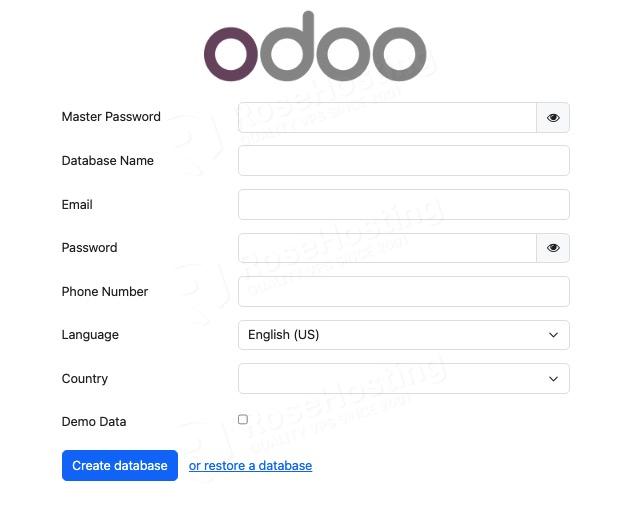
When working with an Odoo database, you will be prompted for the master password. The master password is the one in your Odoo configuration file; it is the value of admin_passwd. Make sure to use a strong password for your Odoo master password.
Kanban odoo18
<kanban sample="1">
                    <field name="avatar_128"/>
                    <field name="is_company"/>
                    <field name="active"/>
                    <templates>
                        <t t-name="card" class="flex-row">
                            <widget name="web_ribbon" title="Archived" bg_color="text-bg-danger" invisible="active"/>
                            <aside class="o_kanban_aside_full">
                                <t t-if="!record.is_company.raw_value">
                                    <div class="o_kanban_image_fill position-relative w-100">
                                        <field name="avatar_128" alt="Contact image" class="h-100" widget="image" options="{'img_class': 'object-fit-cover'}"/>
                                        <field t-if="record.parent_id.raw_value" name="parent_id" class="position-absolute bottom-0 end-0 w-25 bg-light" widget="image" options="{'preview_image': 'image_128', 'img_class': 'object-fit-contain'}"/>
                                    </div>
                                </t>
                                <t t-else="">
                                    <field name="avatar_128" class="w-100" widget="image" options="{'img_class': 'object-fit-contain w-100 h-100'}"/>
                                </t>
                            </aside>
                            <main class="ps-2 ps-md-0">
                                <div class="mb-1">
                                    <field name="display_name" class="mb-0 fw-bold fs-5"/>
                                    <field t-if="record.parent_id.raw_value and !record.function.raw_value" class="text-muted" name="parent_id"/>
                                    <field t-elif="!record.parent_id.raw_value and record.function.raw_value" class="text-muted" name="function"/>
                                    <div t-elif="record.parent_id.raw_value and record.function.raw_value" class="text-muted">
                                        <field name="function"/> at <field name="parent_id"/>
                                    </div>
                                </div>
                                <div>
                                    <field name="membership_state"/> -  <field name="ref"/>
                                </div>
                                <div>
                                    Date de fin d'adhésion : <field name="membership_stop"/>
                                </div>
                                <div t-if="record.city.raw_value">
                                    <field name="city"/>
                                </div>
                                <field name="email" class="text-truncate"/>
                                <footer><div/></footer>
                            </main>
                        </t>
                    </templates>
                </kanban>